macOS
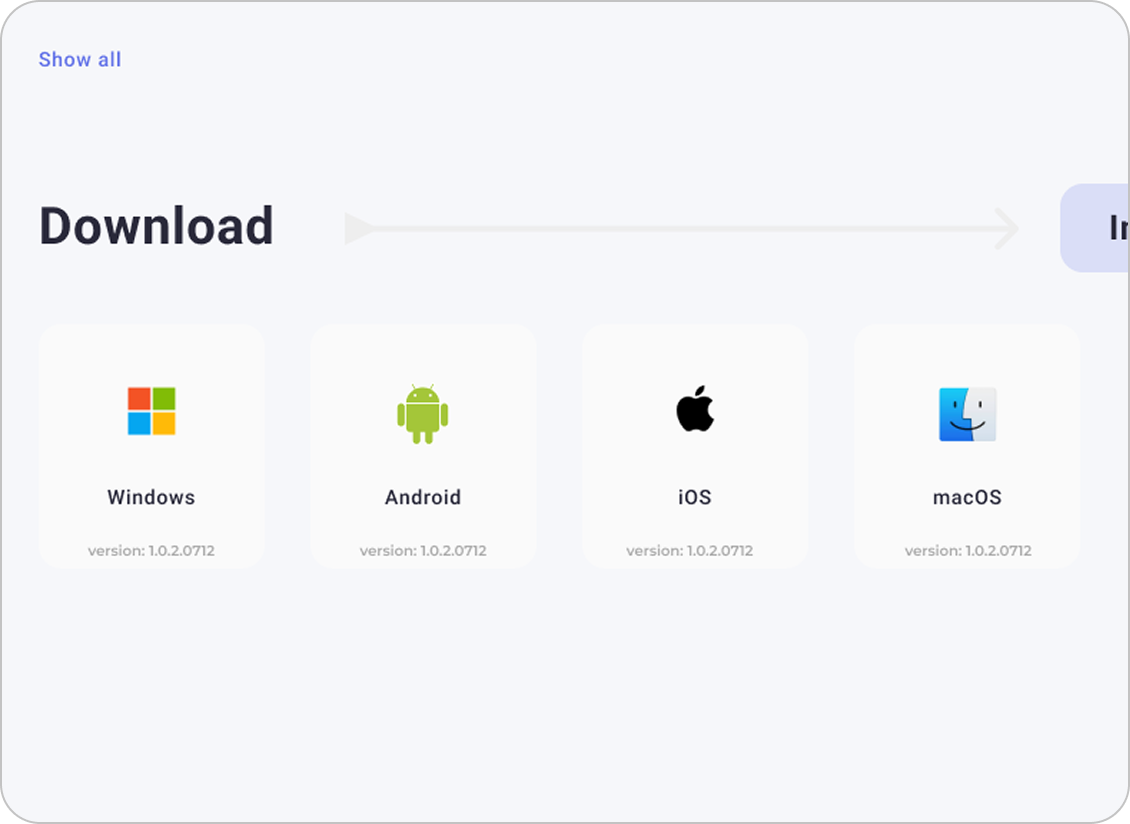
Download Package from Dashboard
Log in to world-vpn.org/dashboard#downloads
and select 'macOS' to download worldvpn.dmg.
Open Disk Image
Double-click the downloaded
worldvpn.dmg file to open the setup window.

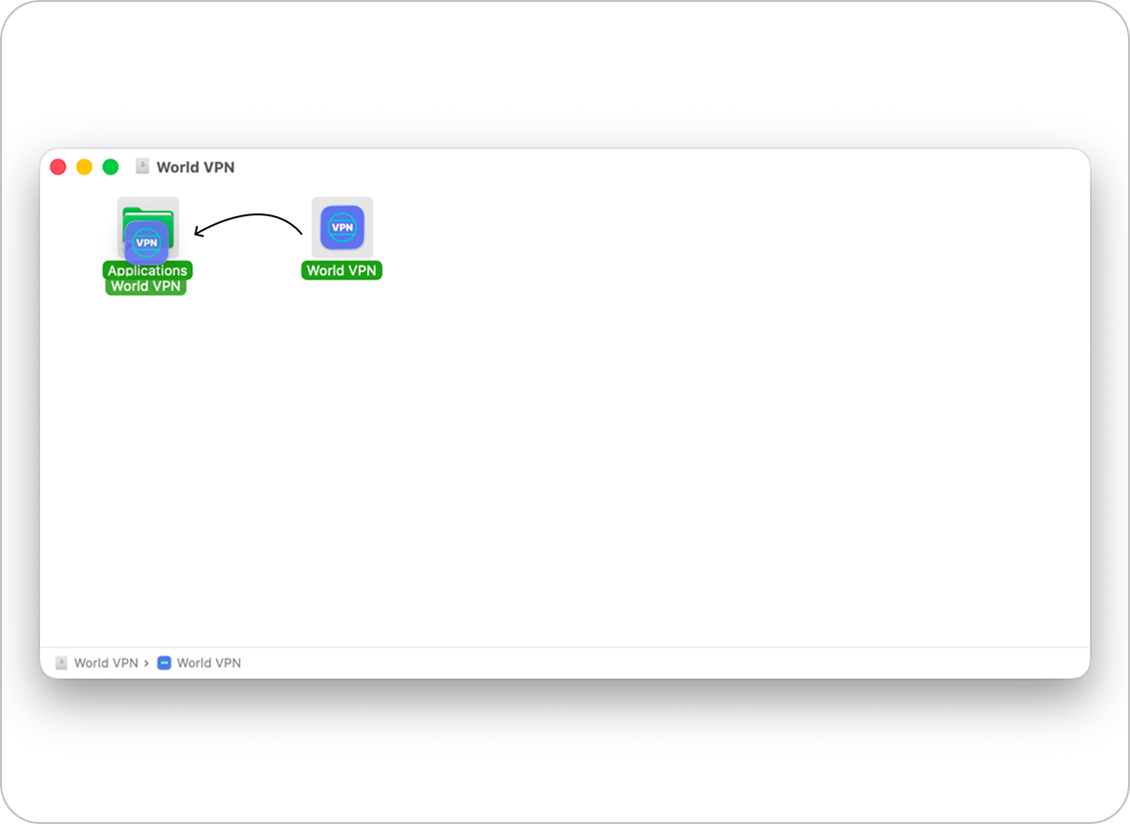
Drag App to Applications
Drag the World VPN icon directly into
Applications as indicated by the arrow.
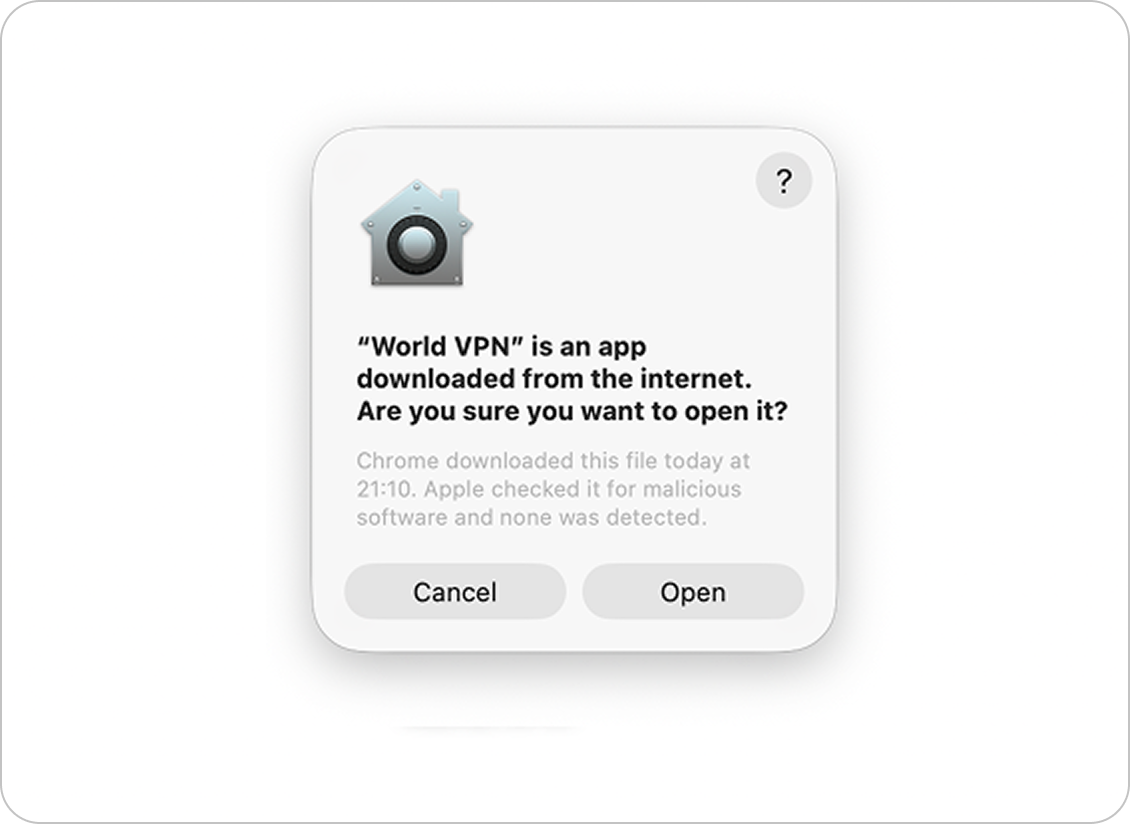
Confirm Security Permissions
Launch World VPN from Applications and
confirm macOS security permissions.
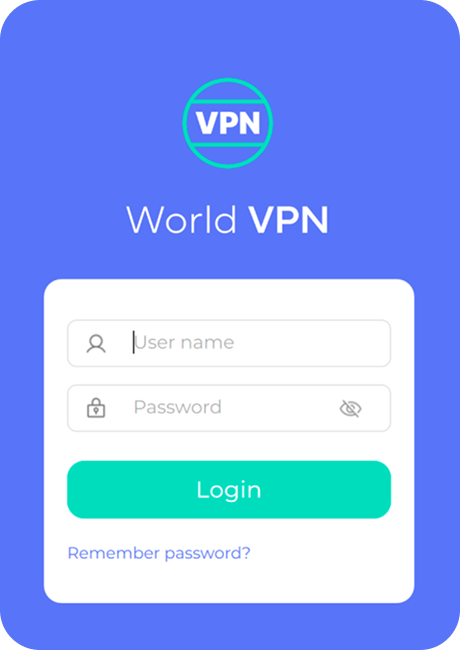
Login to Account
Enter your login credentials in the app.
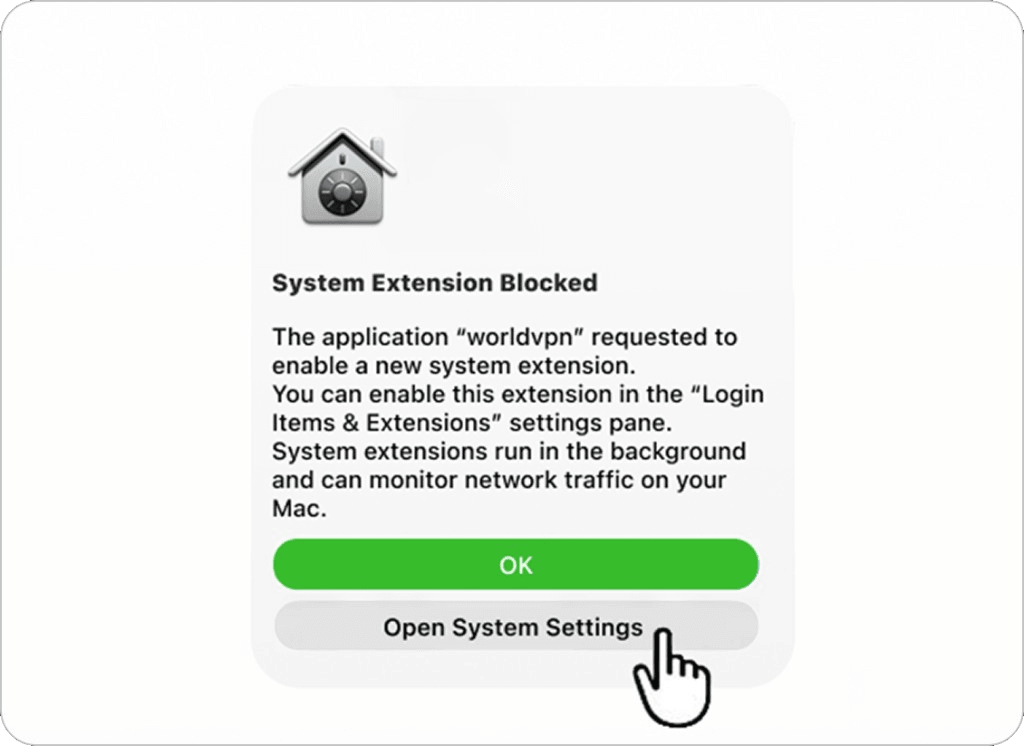
Open System Settings
When the “System Extension Blocked”
prompt appears, click 'Open System Settings'.
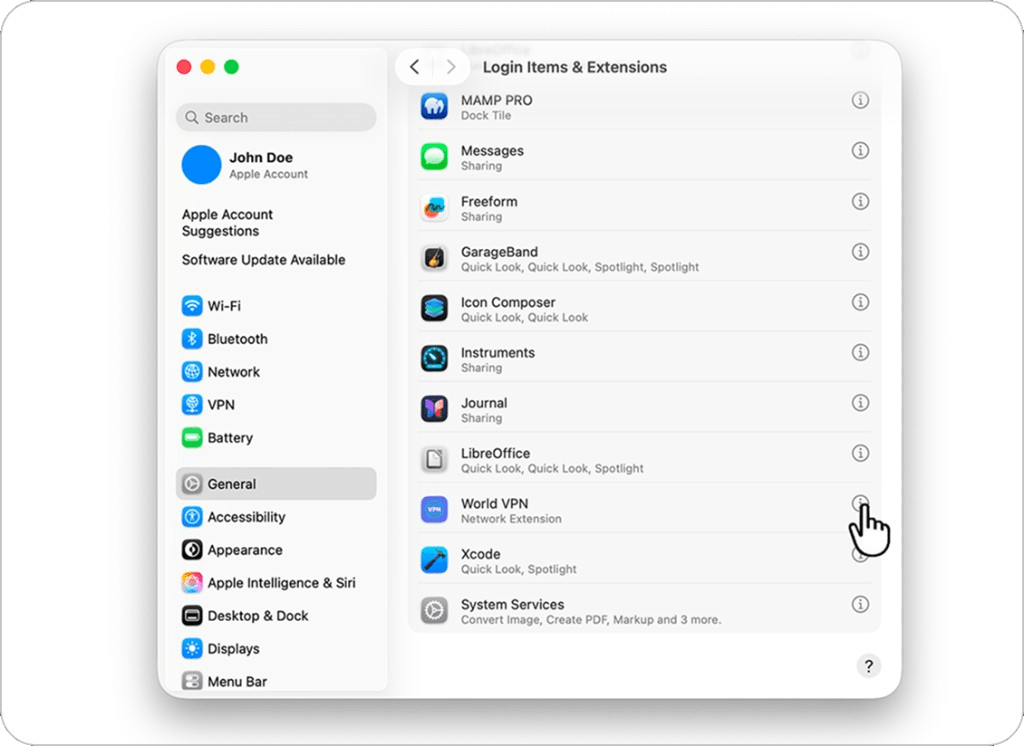
Locate Extension Settings
In the 'Privacy & Security' window, scroll down to the 'Security' section
and click the 'Details...' button next to World VPN Extensions.
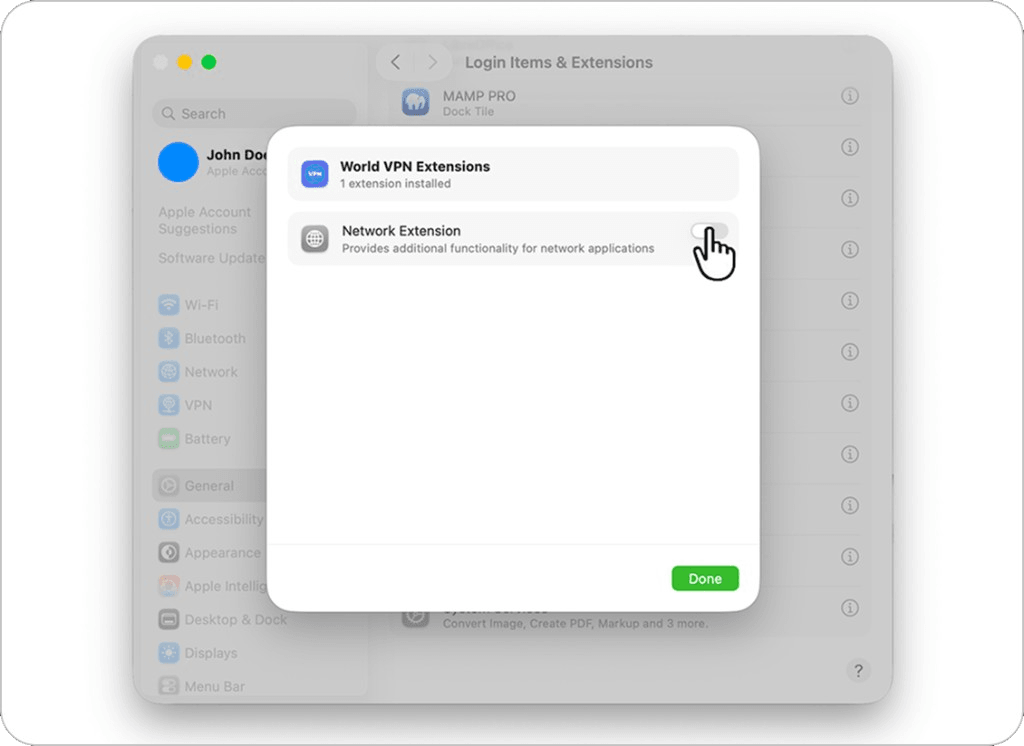
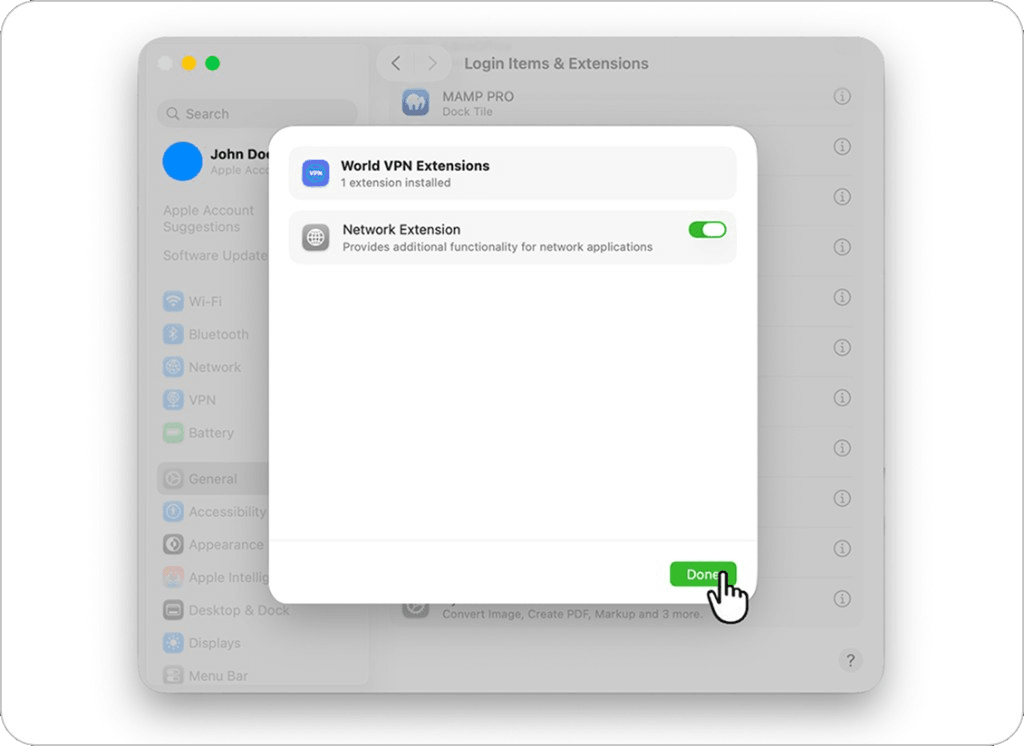
Toggle Network Extension
Click on the Network Extension
toggle to switch it to the active position.
Enter Admin Password
When prompted by macOS, enter your Mac
administrator password or use Touch ID to authorize changes.
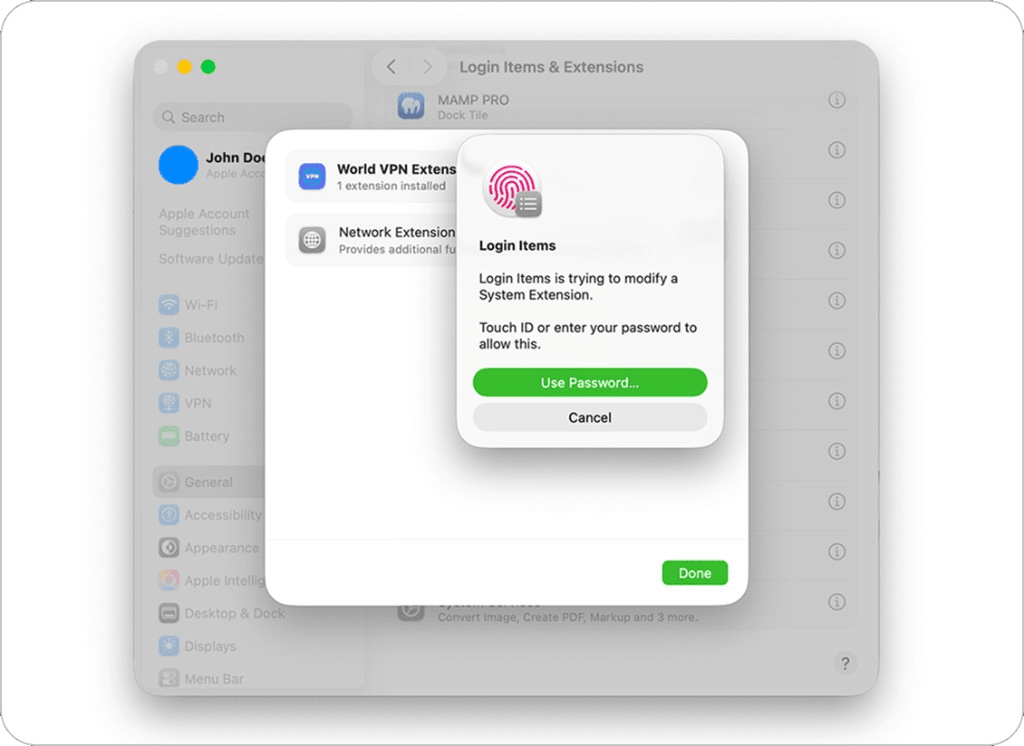
Open System Settings
Toggle the switch next to 'Network Extension'
to the active (blue) position, then click 'Done'.
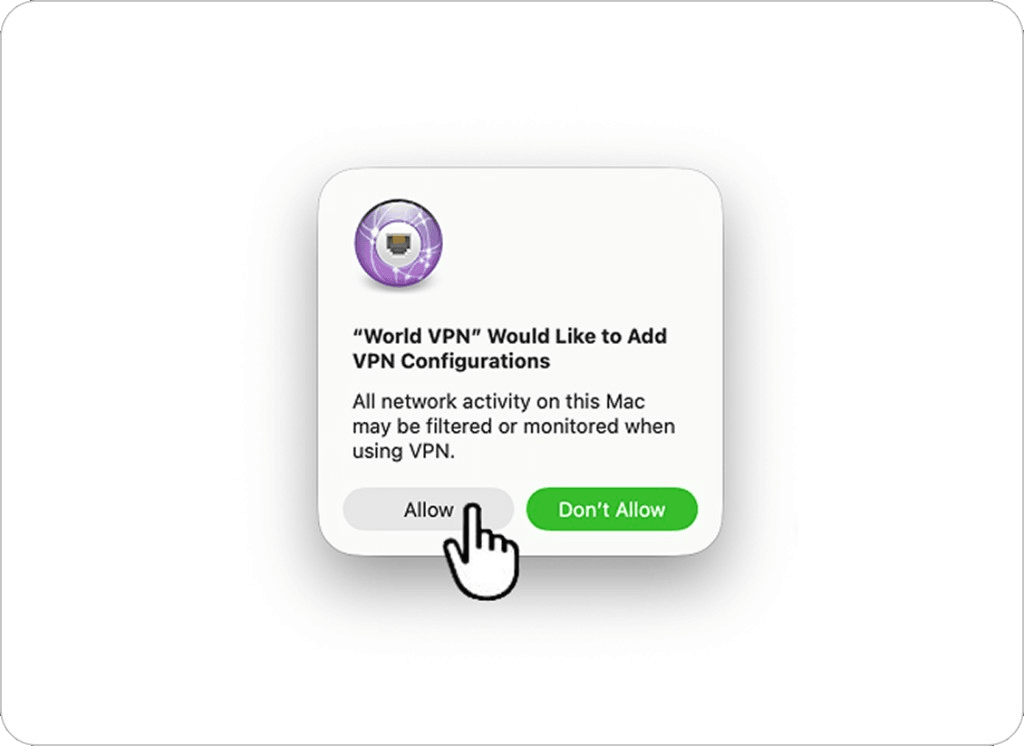
Allow VPN Configurations
Return to the app. When macOS asks for
permission to add VPN configurations, click 'Allow'.
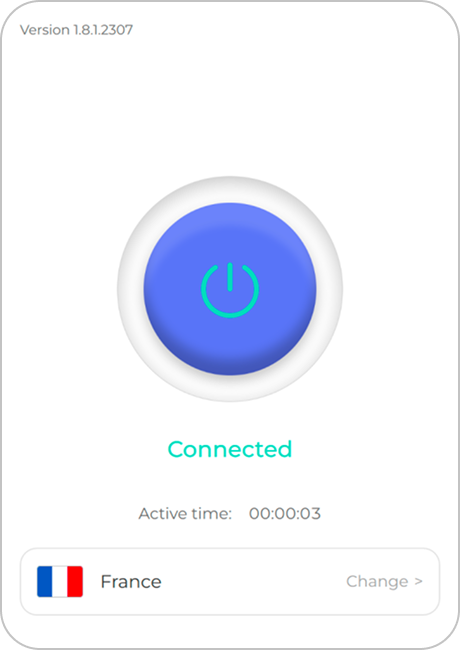
Connect Successfully
Click 'Connect' to activate your secure VPN connection.